
PayWeb360 v1.24 is now available in production. The purpose of this release is to introduce 1 new feature (Stipulations), enhance 2 existing ones (Agent Links, Payment History), and resolve 1 issue (Email Communications).
Stipulations
Stipulations is a new Agent Links action that enables an agent to send a law suit defendant a link to sign and pay a stipulation agreement.
How it works
Agent Access
All Agent Links, including Stipulations, are sent via agent view of PayWeb360. The agent view is accessed either via single sign-on integration or a new PayAgent mode within our client-facing portal. The latter (PayAgent 3) was introduced as part of this release and is covered in our PaymentVision 5.34 release notes.
Agent View
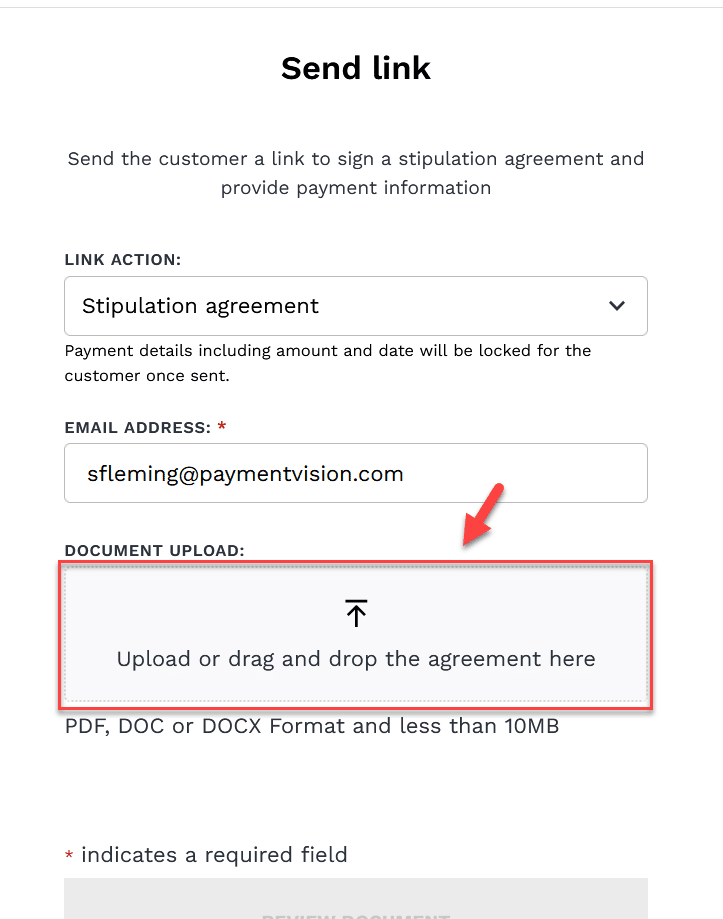
- Stipulation agreements are a type of link action within the Send Customer Link screen. They can be sent for a lump sum payment, payoff plan or settlement offer.

- When selected, a Document Upload field is presented.

- When an agreement is uploaded, an optional, AI-generated summary can be presented. Before proceeding, the agent must check a box acknowledging that they uploaded the correct agreement.

- Clicking Review Document launches an embedded view of the agreement via Docusign integration, enabling the agent to drag and drop signature fields onto the document and add additional recipients.
- Clicking Send triggers a callback to PayWeb360 and an email to the defendant, with a sign and pay link. If the email address is not already registered to the defendant, an access code is presented. This will need to be provided to the defendant and is required to access the link.




Defendant View
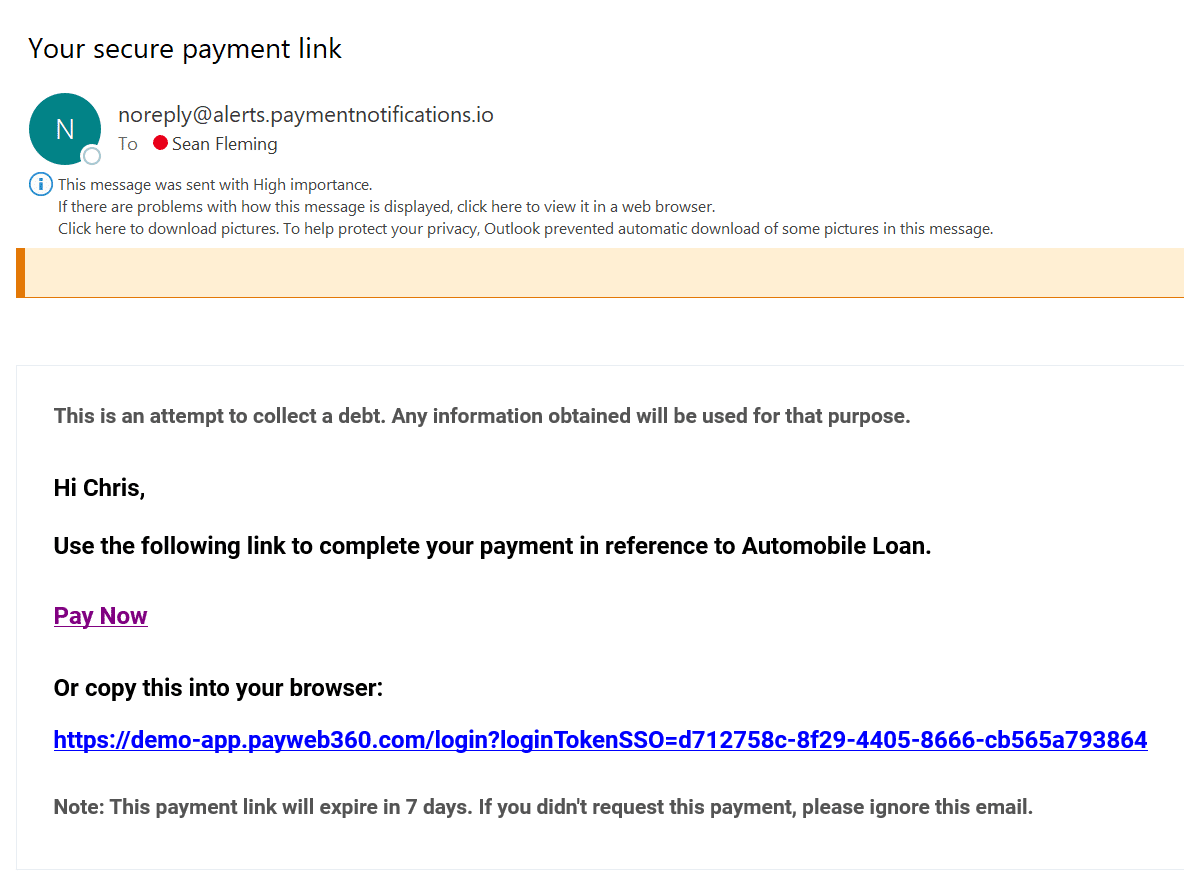
- After receiving the email, the defendant clicks Pay Now to sign and pay the agreement.

- If the email address is not already registered to the defendant an access code entry screen is presented.

- After gaining access, the defendant lands on a variant of the Make Payment page which includes the agreed to stipulation amount and, in the case of a settlement, a settlement summary.

- The defendant then selects an existing payment method or securely adds a new one.

- After selecting a payment method, clicking Review Payment launches a verification screen with the details of the payment arrangement. The defendant is required to check a box acknowledging that they consent before proceeding.

- After providing consent, clicking Sign and Pay launches a Docusign electronic records and signatures disclosure. The defendant is required to check a box agreeing to the terms before proceeding.
- Clicking Continue launches the agreement, enabling the defendant to review and electronically sign it.
- This triggers a call back to PayWeb360 and the payment is immediately processed

- When complete, the defendant is provided with confirmation.

- Any additional defendants then receive an email link to sign the agreement.


Attorney View
- Once all defendants have signed, the attorney receives an email link to sign.
- Once complete, PaymentVision downloads the signed agreement and drops it to an FTP folder for transmission to the law firm.
Agent Links
In addition to Stipulations, we are making two enhancements to Agent Links. (Link Progress and Link Disclaimers)
Link Progress
Link Progress enables agents to view the progress of a link from the time it is sent to payment completion.
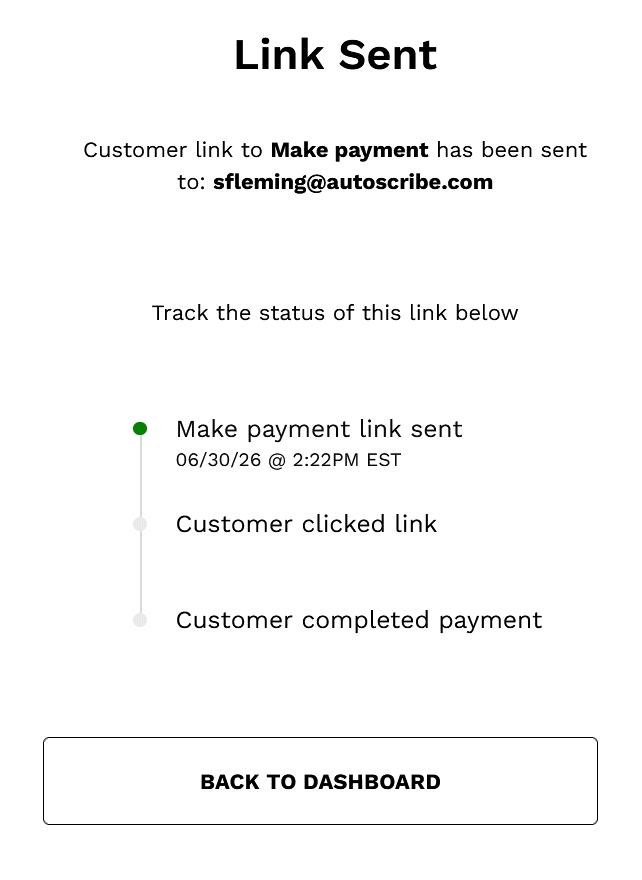
Link Progress is currently limited to the following link actions:
- Automatic login
- Make payment
- Verify payment
Link Disclaimers
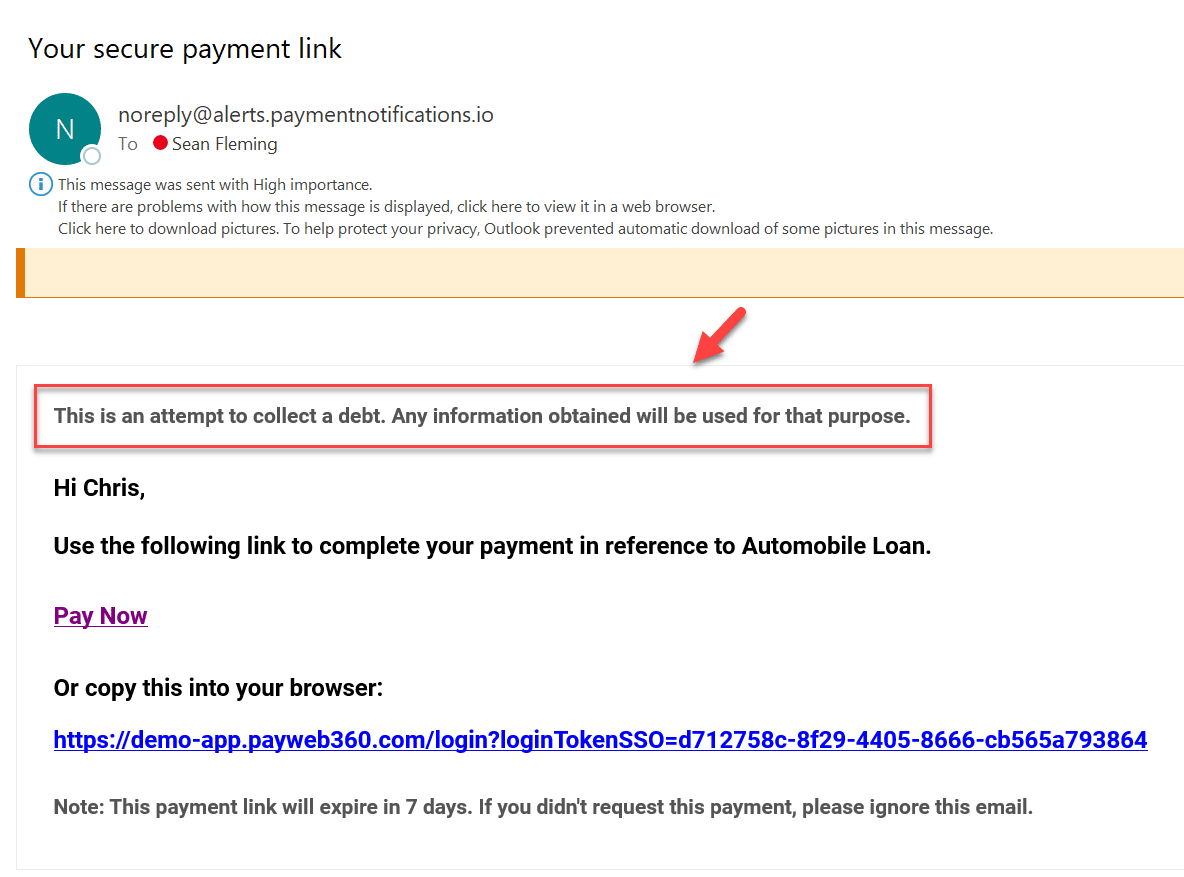
Link Disclaimers enable clients to include a custom disclaimer in the contents of the email.
Payment History
Cash walk-in payments are now included within Payment History.
Email Communications
We fixed an incompatibility issue with email source addresses exceeding 50 characters in length.
Known Issue
A user is able to make a duplicate Stipulation payment using their browser back button. We intend to safeguard against this in a future release.